


Sesame Street Art Maker
4.04.00 Reviews
App Specs
- Version
- 1.6
- Updated On
- License
- $3.99
- Downloads
- 10,000+
- Developer
- Sesame Workshop
- Categories
- Art & Design
- Platform
- Android
Screenshots
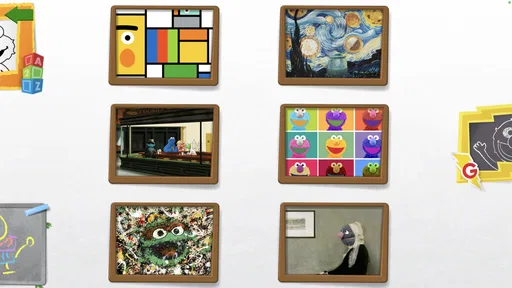
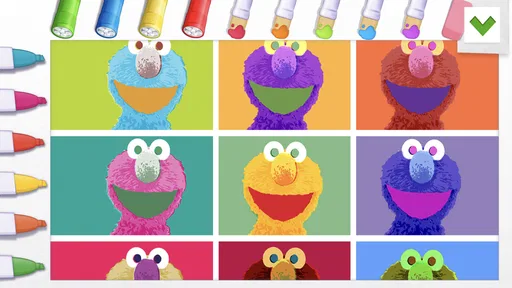
 Analysis by AppCompare
I opened Sesame Street Art Maker expecting a simple children’s drawing activity, and that is exactly where it makes the most sense: as a friendly, low-pressure way for a child to create pictures with familiar Sesame Street characters. It is an art and design app from Sesame Workshop, aimed at Everyone, with a gentle presentation that feels much more approachable than a blank canvas. My overall impression is positive, especially for preschool and early-primary children who want to make something quickly rather than learn a full drawing program.
The important distinction is that this is not trying to replace a serious illustration tool. It gives children a recognizable starting point, playful creative choices, and a clear path from opening the app to finishing a picture. That focus is its biggest strength. It also explains its limitations: children looking for advanced brushes, detailed editing, or a large professional-style workspace will outgrow it quickly.
Starting with a child who does not know what to draw
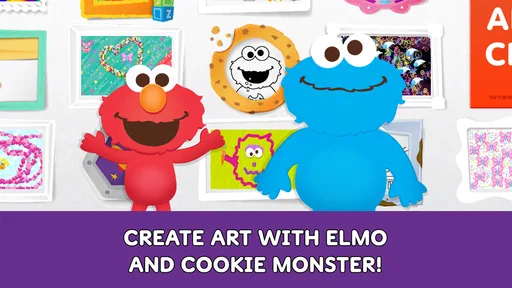
The best way to understand the app is to imagine a familiar situation. A child has a few quiet minutes, wants to make art, but does not have a subject in mind. A normal drawing app can make that moment harder because an empty page demands an idea before anything happens. Sesame Street Art Maker removes that first obstacle by putting Sesame Friends at the center of the creative experience.
That matters for younger users. A character they already recognize can turn “I do not know what to draw” into “I want to make a picture with this character.” The app’s store summary describes it as a way to make art with Sesame Friends, but in practice the useful part is the handoff from recognition to action. The child is not starting from technical tools; they are starting from a familiar world.
I would recommend it most to families looking for an approachable children’s art app, not to someone shopping for a general-purpose drawing studio. The Everyone content rating makes it suitable for a broad family audience, while the Sesame Workshop identity gives the experience a clear educational and playful tone without making it feel like a lesson worksheet.
There is also a practical benefit for adults. You do not need to prepare a craft table, gather paper, or explain a complicated interface before the child begins. The app offers an immediate digital activity, which is useful during travel, while waiting, or at home when a child wants to create but the adults need a contained activity. I still see it as a companion to hands-on art rather than a replacement for crayons, paint, or paper.
Moving from a blank idea to the first marks
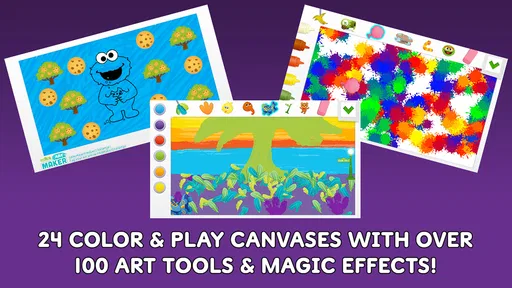
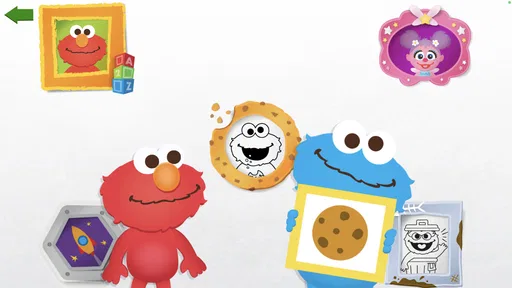
The creative flow is intentionally simple. A child chooses a starting point, works with the Sesame-themed material, and begins arranging or decorating the picture. The value is not in giving the user hundreds of technical controls; it is in making the first decision easy enough that a young child can act independently.
Worth Reading Before You Choose

EA SPORTS FC Mobile 26 Is a Bigger Football Game, but It Takes Time

Flipboard Shows What News Apps Must Do Beyond the Feed

Switching to Android Auto Means Rethinking Your Driving Routine

Google Calendar Makes a Crowded Week Easier to Manage

Ludo King Makes the Most of the Minutes Between Plans

Baby Panda World Brings Quick Play to Modern Phones, but Its Game Library Feels Busy
For a parent, the most useful workflow is to let the child explore before offering instructions. If an adult immediately explains every control, the activity can become a demonstration instead of the child’s own project. I found the better approach is to ask one open question, such as what kind of scene the child wants to make, and then allow the app to provide the visual prompts. This keeps the creative decision with the child while avoiding the frustration of a completely empty canvas.
The app works particularly well when the goal is a finished result in one sitting. A child can choose a character or visual starting point, add personal touches, and then show the picture to someone else. That quick loop is important for younger attention spans. A tool that requires a long setup or careful layer management might offer more power, but it would also introduce more chances for the child to lose interest.
One useful tip is to treat the first creation as a warm-up rather than a final masterpiece. Let the child make a deliberately silly picture, then try a second one with a small theme: a birthday scene, a rainy day, a family picture, or a pretend trip. This gives the app more purpose than repeatedly tapping through decoration choices. It also helps children practice making decisions instead of simply accepting the first arrangement.
Another good workflow is to narrate the picture after it is made. Ask who is in the scene, what happened before the picture, and what might happen next. The app itself is focused on art, but the finished image can become a prompt for storytelling and conversation. That is a stronger use than treating it as a passive character viewer.
Where the adult and child hand off control
The most successful handoff is from adult setup to child ownership. An adult may need to open the app, check that the device is ready, and help with the first interaction. After that, the child should be allowed to make the visual choices. Because the experience is built around Sesame Friends rather than technical drawing vocabulary, the child can participate without needing to understand concepts such as layers, opacity, or brush stabilization.
This makes it suitable for a shared activity between a parent and child. One person can suggest a story or setting, while the other makes the picture. Siblings can also take turns adding to a single idea, although the app is more naturally suited to individual creative control than to a large group gathered around one screen.
The handoff becomes less straightforward when the child wants a very specific result. A young artist might imagine a detailed scene and then discover that the available creative structure does not match that idea exactly. In that moment, an adult can help by reframing the task: instead of reproducing every detail, focus on the character’s expression, the color mood, or the main action. This is not a flaw unique to this app; it is the trade-off for keeping the interface simple.
I also think adults should decide in advance what “finished” means. If the child is expected to produce a polished illustration, the app may feel restrictive. If the goal is to experiment, make a character picture, or create something to show a grandparent, its focused design becomes an advantage. Setting that expectation prevents the common mistake of judging a children’s creative tool by the standards of adult illustration software.
The developer is Sesame Workshop, and that context is visible in the app’s choice of subject and tone. The characters are not an incidental theme placed over a generic drawing engine; they are the reason the activity feels inviting. For a child already interested in Sesame Street, that familiarity can be more valuable than a longer list of drawing tools.
Turning the picture into a shared outcome
The strongest outcome is not necessarily the most technically impressive image. It is the moment when the child can point to the result and say what they made. In my experience, a successful children’s art app should make that moment arrive without too much adult correction, and this one is well suited to that kind of small achievement.
A realistic everyday use case would be a rainy afternoon when a child has finished a book or puzzle but still wants an activity. I would sit nearby, let the child choose the Sesame Friends and the direction of the scene, and then ask for a short explanation of the finished picture. The app supplies the visual starting point; the child supplies the decisions and story; the adult supplies attention and encouragement. That is a complete workflow with a meaningful result, even if the image itself is simple.
It can also work as a gentle transition activity. After screen time, a child can make one picture and then use it to begin an offline task, such as drawing the scene again on paper or telling a story about it. This is a better fit for the app than leaving it open as an endless source of stimulation. The creative result gives the screen session a natural endpoint.
For teachers or caregivers, the app could support a small prompt-based activity: choose a character, create a setting, and explain one thing happening in the image. I would keep the group small because the experience is personal and hands-on. The useful educational value comes from expression, sequencing, and conversation, not from formal art instruction.
The rating information also gives a helpful snapshot of how the app is being received: it holds a 4.0 average from around fifty ratings, with a small number of written reviews. I would read that as a reasonable sign of appeal, but not as a substitute for deciding whether the app’s narrow creative focus matches your child. The experience is likely to satisfy a child who wants Sesame-themed making; it is less likely to satisfy one who wants unrestricted digital painting.
What happens after the child finishes
Once the picture is complete, the next step is where the app’s value depends on the household routine. If the child simply closes the app, the activity may feel brief. If the finished image becomes something to discuss, recreate, or use in a story, the same session becomes more memorable and useful.
I suggest asking the child to choose a title for the picture. That small step changes the result from a collection of visual choices into an authored piece. You can then ask what the character is doing and why. These questions do not require extra app features, and they make the creative outcome feel personal rather than disposable.
Another practical idea is to create a small sequence over several sessions: one picture for the beginning of a story, one for the middle, and one for the ending. This gives the app a repeatable purpose without pretending it is a full animation or publishing tool. The child practices continuity and planning while still working inside a friendly, manageable format.
The app costs $3.99, so I would view it as a focused purchase rather than a free activity to install casually and forget. That price makes more sense if the child already enjoys Sesame Street and will return to character-based art. If the child is only occasionally interested in digital drawing, a free basic sketching option or physical art supplies may offer better value.
On the technical side, the current version is 1.6 and it requires an operating system of 9 or later. That is worth checking before installing, especially on an older family device. The app has passed the ten-thousand-install mark, which suggests it has found a real audience, but its appeal remains specific rather than universal.
Where the workflow breaks down
The first breaking point is creative range. Children who want to draw animals from scratch, build complex backgrounds, or control every line may find the Sesame Street structure too guided. In that case, a conventional drawing app with a blank canvas is the better choice, even if it takes longer to learn.
The second is repetition. A child may enjoy the first few creations and then want new visual material or a different kind of challenge. Because the app’s identity is tightly connected to Sesame Friends, its long-term appeal depends heavily on how much the child enjoys returning to that theme. I would not buy it as the only art app for a child who already spends time experimenting with detailed digital illustration.
The third is the adult’s expectation of independence. The experience is approachable, but “easy for children” does not always mean every child will understand it instantly. Younger users may still need help at the beginning, and children with different motor or attention needs may respond differently to the interaction. A parent should be prepared to sit with the child for the first session rather than assuming the app will manage the whole activity alone.
There is also a difference between making art and learning drawing technique. This app can encourage choice, imagination, and visual storytelling, but it should not be treated as a structured course in proportion, shading, composition, or digital painting. If those are the learning goals, a dedicated art-learning app, paper exercises, or guided instruction would be more appropriate.
Finally, the $3.99 purchase changes the decision for families comparing several children’s apps. The price is modest for a focused Sesame-themed activity, but the app needs to fit the child’s interests to justify it. I would choose it for a Sesame fan who enjoys decorating and storytelling; I would skip it for a child asking specifically for open-ended drawing tools.
My recommendation after following the full workflow
Sesame Street Art Maker succeeds because it understands its starting condition: many young children want to create but do not want to begin with an intimidating empty page. Sesame Friends provide an inviting entry point, and the app guides the child toward a personal picture without demanding advanced drawing skills.
I like it best as a short, shared creative routine. Open it with a simple idea, let the child make the important choices, and finish by talking about the picture or extending it into an offline story. That workflow brings out more value than simply tapping through the art options and moving on.
My honest recommendation is to choose it for a young Sesame Street fan who needs an approachable first step into digital art. It is not the right purchase for advanced drawing, unrestricted illustration, or a child who quickly becomes bored with character-led activities. Within its narrower purpose, though, it is warm, accessible, and easy to turn into a meaningful parent-and-child creative moment.
Pros
- Simple tools make it easy for young children to create artwork.
- Familiar Sesame Street characters add extra appeal for preschoolers.
- Creative activities can encourage imagination and basic visual expression.
- The colorful interface is inviting and easy for children to explore.
- Suitable for short
- casual play sessions without complex instructions.
Cons
- The app may feel too basic for older children or experienced young artists.
- Limited customization can reduce replay value after the main tools are explored.
- Some activities may require adult guidance for younger preschool users.
- Artwork options may not offer enough variety for frequent
- long-term use.
- Compatibility and performance can vary on older Android or iOS devices.
FAQs for Sesame Street Art Maker
What is Sesame Street Art Maker?
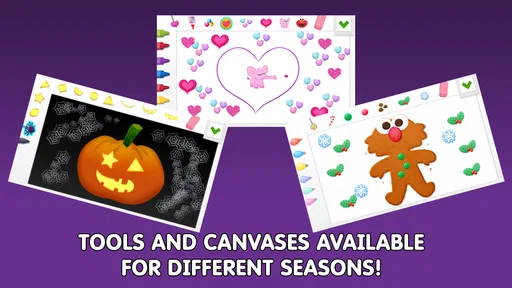
Sesame Street Art Maker is a child-friendly creative app inspired by the beloved Sesame Street characters. It gives children a digital space to draw, decorate, and create colorful artwork using familiar characters, themed backgrounds, stickers, and simple creative tools. The interface is designed to be easy for young users, so children can explore independently while parents can enjoy seeing their imagination and storytelling skills develop.
Is Sesame Street Art Maker suitable for young children?
Yes, Sesame Street Art Maker is primarily designed for preschool and early elementary-age children, although the ideal age may vary depending on the child’s familiarity with tablets and creative apps. The controls are generally simple and visual, with no complicated menus or advanced artistic knowledge required. Parents should still review the app’s current age rating, permissions, and available settings before allowing independent use.
Does the app require an internet connection?
The basic creative experience may work without a constant internet connection once the app and its required resources have been installed, which is useful for travel or limited-data situations. However, certain features, updates, downloadable content, advertisements, or external links may require internet access. Because requirements can change between versions and devices, it is best to test the app offline before relying on it during a trip.
Is Sesame Street Art Maker free to download and does it include purchases?
The availability and pricing of Sesame Street Art Maker can depend on the platform, region, and version offered in the Google Play Store or Apple App Store. Some versions may be free, while others can include optional paid content or related in-app features. Parents should check the store listing carefully for in-app purchases, advertising, subscriptions, and purchase restrictions before handing the device to a child.
Is Sesame Street Art Maker safe for children and does it collect personal information?
Sesame Street Art Maker is intended to provide a controlled, child-oriented creative experience rather than an open social network. Nevertheless, parents should read the current privacy policy and store disclosures because data practices, permissions, advertising, and external links may vary by version and location. It is also advisable to enable parental controls, restrict purchases, and supervise use, especially when the device is shared with other apps.


